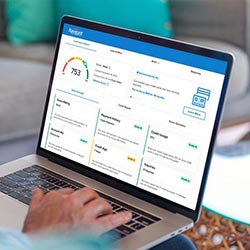
Life is complicated. Banking doesn’t have to be. Navigant Credit Union lets you access your accounts 24/7, no matter where you are. With digital banking, you can check your balance, make deposits and transfers, pay bills, find an ATM, or pay a friend – at home, at work, in the gym, even in the grocery store.
Get started with our digital banking tools and bank easy, anywhere and anytime.
How do I transfer funds to/from other Financial Institutions?
You can transfer money between your Navigant Credit Union checking accounts and the accounts you have at other financial institutions easily with Online Banking.
Follow the steps below to get started:
Login to Online Banking.
Select Move Money tab
Select External Transfers
Select Transfer Between My Accounts
Upon first access, you’ll be guided through a quick registration process. Once registered, all Navigant deposit accounts will be added to this service automatically.
Click Add a New Account
Choose the type of deposit account and click Add
Enter a nickname for the account, the routing number, and the account number
For your security, we require you to verify that you own the account with your login credentials or with a trial deposit
That’s it! You are ready to transfer funds
What do I need in order to begin using Online Banking?
To get started, you will need your temporary User ID and password you received when you opened your account.
If you do not know your temporary login info, contact our Contact Center at 401-233-4700, and we’ll be able to assist you.
Can I change my Online Banking password?
Yes, we encourage you to update your password regularly to keep your account secure.
Follow the steps below to get started:
Login to Online Banking
Click the User Options link
Select Change Password
Follow the prompts to change your password
If you have forgotten your password, click the “Forgot Password?” link below the Login button on the Online Banking Login screen or at the top of our homepage and follow the prompts to reset your password.
How do I change my Online Banking User ID?
If you would like to change your Online Banking User ID, follow the steps below:
Login to Online Banking
Click on the User Options link at the top of the screen
Select Change User ID
Follow the prompts to change your User ID
I share a joint account. Can I set up two phones for the same primary account?
Yes! After you set up the first phone number, you can select the Activate Another Phone link on the Mobile Banking & Alerts page in Online Banking and then complete the simple two-step process.
NavigantCU.org says
This is a courtesy alert to let you know that the link you just clicked will connect you to a third-party website in a new browser window. We are obligated to tell you that this third-party website is not owned or operated by Navigant Credit Union, that Navigant Credit Union is not responsible for the content of this site and does not represent you or the third party if you enter into a transaction. Privacy and security policies may differ from those of Navigant Credit Union. If you continue, it will be easy to navigate back to the Navigant Credit Union website by closing the partner website window.
Online & Mobile Banking will be unavailable on Sunday, October 25th from 1:30am – 5:30am due to system maintenance. We apologize for the inconvenience.